Windows app · free · coming soon
Switch speakers and headphones right from your taskbar.
Audio Roller puts your audio outputs on the taskbar. Scroll over it or click a device to switch, and scroll anywhere on the taskbar to change the volume. No more trips into the Windows sound settings.
- Free — no account
- Runs locally — nothing uploaded
- Six designs — make it yours
A real recording from my taskbar, using the Anvil Signature design: click to switch outputs, hover for media controls, scroll to change the volume.
What it does
Your audio, one scroll away.
Switch outputs instantly
Scroll over the roller, or click the device you want. A soft highlight slides to the one that's playing. When your headphones connect mid-call, you're one scroll away instead of five clicks deep in Settings.
Volume from anywhere on the taskbar
Scroll anywhere on the taskbar, or right on the volume number, and the volume follows, with Windows' own volume pop-up. No hunting for the tiny speaker icon, and it works while you stay in whatever you're doing.
Media controls on hover
Hover the roller for play/pause, next and previous, what's playing, and one button to pause everything at once. Pause the video in another tab without finding the tab.
Make it yours
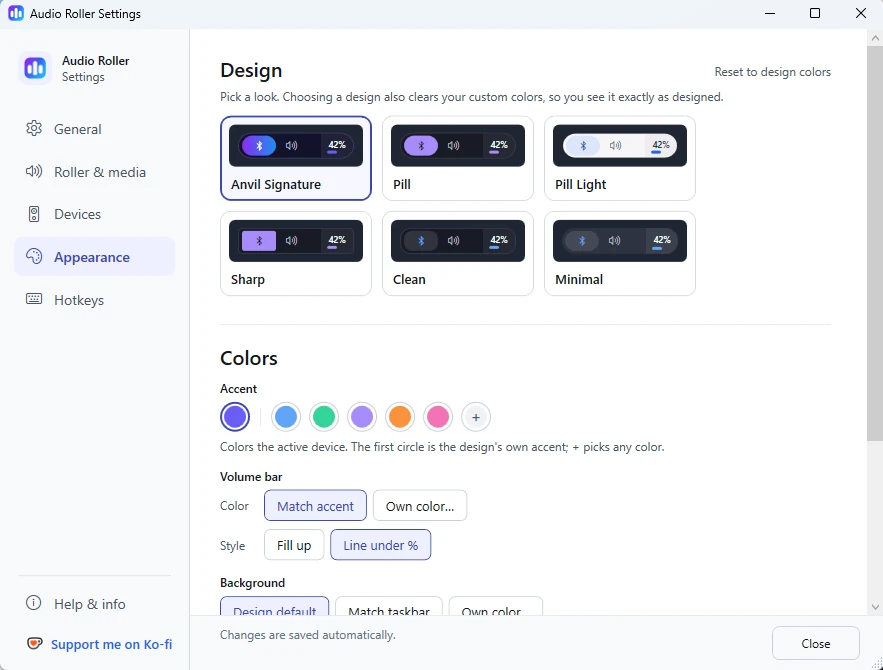
Six designs, accent colours, two volume-meter styles, and a switch for every feature you'd rather not see. It sits on your taskbar all day, so it should look like it belongs there.
Why I built it
I kept switching between my speakers and a Bluetooth speaker.
Windows makes that a trip through the sound settings every time. I used a free tray-menu switcher for a while, but I wanted it right on the taskbar, where I could just scroll to the next output without opening anything.
Audio Roller is that, plus the volume and media controls I kept reaching for. It's the tool I leave running all day.
Privacy
Nothing about your audio leaves your PC.
- No server, account, analytics or telemetry. Audio Roller has no network code at all; it only opens your browser when you click one of its links.
- Everything stays in one local folder. Your settings and a small diagnostic log live in
%LOCALAPPDATA%\AudioRoller, and you can open that folder from Settings. - What's playing stays on screen. The media controls read Windows' own now-playing info to show it to you, and never store or send it anywhere.
Honest limits
What it does, what it doesn't, and what's still being tested.
- Built and tested on Windows 11. Custom taskbar replacements (StartAllBack, ExplorerPatcher and the like) aren't supported.
- Outputs only, for now. It switches speakers and headphones, not microphones.
- Media controls only see apps that report to Windows. Browsers, Spotify and most players do; an app that doesn't tell Windows what it's playing won't show up.
- No live video preview. Windows blanks windows on other virtual desktops, so a thumbnail of the playing video can't be shown reliably. I left it out rather than ship something that goes blank.
- It uses more memory than a tray menu. Around 250–300 MB, because it's a .NET desktop app with a live taskbar display. Bringing that down is on my list.
- Windows may warn you on first install. Until the app is code-signed, Windows SmartScreen can show "Windows protected your PC". Choose More info → Run anyway if you trust the download.
Is it free?
Yes. No account, no trial, no ads. If it saves you time, there'll be an optional Ko-fi link in the app to support it — never a nag.
Does it change my Windows settings?
Switching an output sets it as Windows' default playback device, the same setting the sound panel changes. It can also switch the communications device, but only if you turn that on. It starts with Windows only if you ask it to.
Can you see what I'm listening to?
No. The now-playing info is read from Windows to show it on your screen, and it never leaves your PC. There's nowhere for it to go.
Why does it watch the mouse wheel?
Only to catch scrolling over the taskbar for volume. Scrolling anywhere else goes straight through to your apps, except for the moment the roller is revealed over a fullscreen video, when the wheel adjusts volume until it hides. You can switch taskbar volume off in Settings.
Can I hide the parts I don't use?
Yes. The device icons, arrows, media controls, taskbar volume, hotkeys and the tray icon can each be turned off, and you pick the design and colours.
Found a bug or have an idea?
Settings → Help & info has an email link and my X account. It's just me, and I read every message.
Where it runs
- Windows 11
Where it's heading
Small and focused on purpose, and shaped by you.
Audio Roller does one job: your audio, one scroll away. It stays out of your way while doing it: no account, no background service, and it sits at close to zero CPU when you're not touching it.
- The goal: the fastest, best-looking way to control audio on Windows, without turning it into a mixing desk.
- On my list: a design that follows Windows' light/dark mode, a smaller memory footprint, and (maybe) microphone switching. These are plans, not promises.
- Your feedback decides the rest. Found a bug, want a feature, or think something should work differently? Tell me: email or @deskanvil on X. It's just me, and I read every message.